
Guide complet
Guide d'utilisation Kling Motion Control
Maîtrisez le contrôle de mouvement par IA et créez des vidéos impressionnantes avec des mouvements de personnages précis. De la configuration de base aux techniques avancées.
Ce que vous pouvez créer
Explorez les possibilités avec Kling Motion Control
Mouvements corporels complets parfaitement synchronisés
Transférez des mouvements corporels complets depuis des vidéos de référence vers vos images de personnages avec une synchronisation précise.
Référence de mouvement
Référence d'image
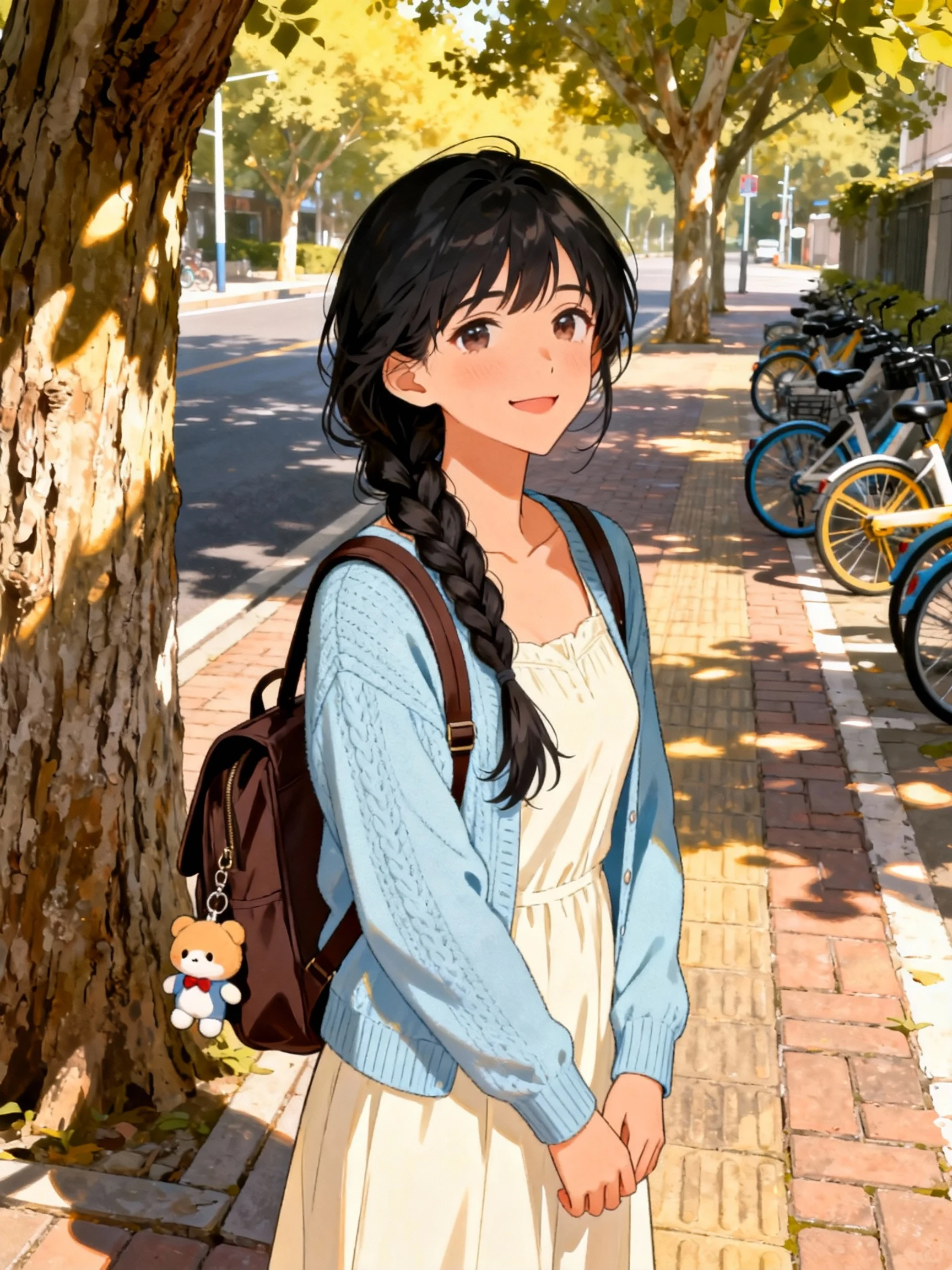
Vidéo de sortie
Performance magistrale de mouvements complexes
Gérez des mouvements complexes comme des chorégraphies, des actions sportives et des performances artistiques avec un flux naturel.
Référence de mouvement
Référence d'image
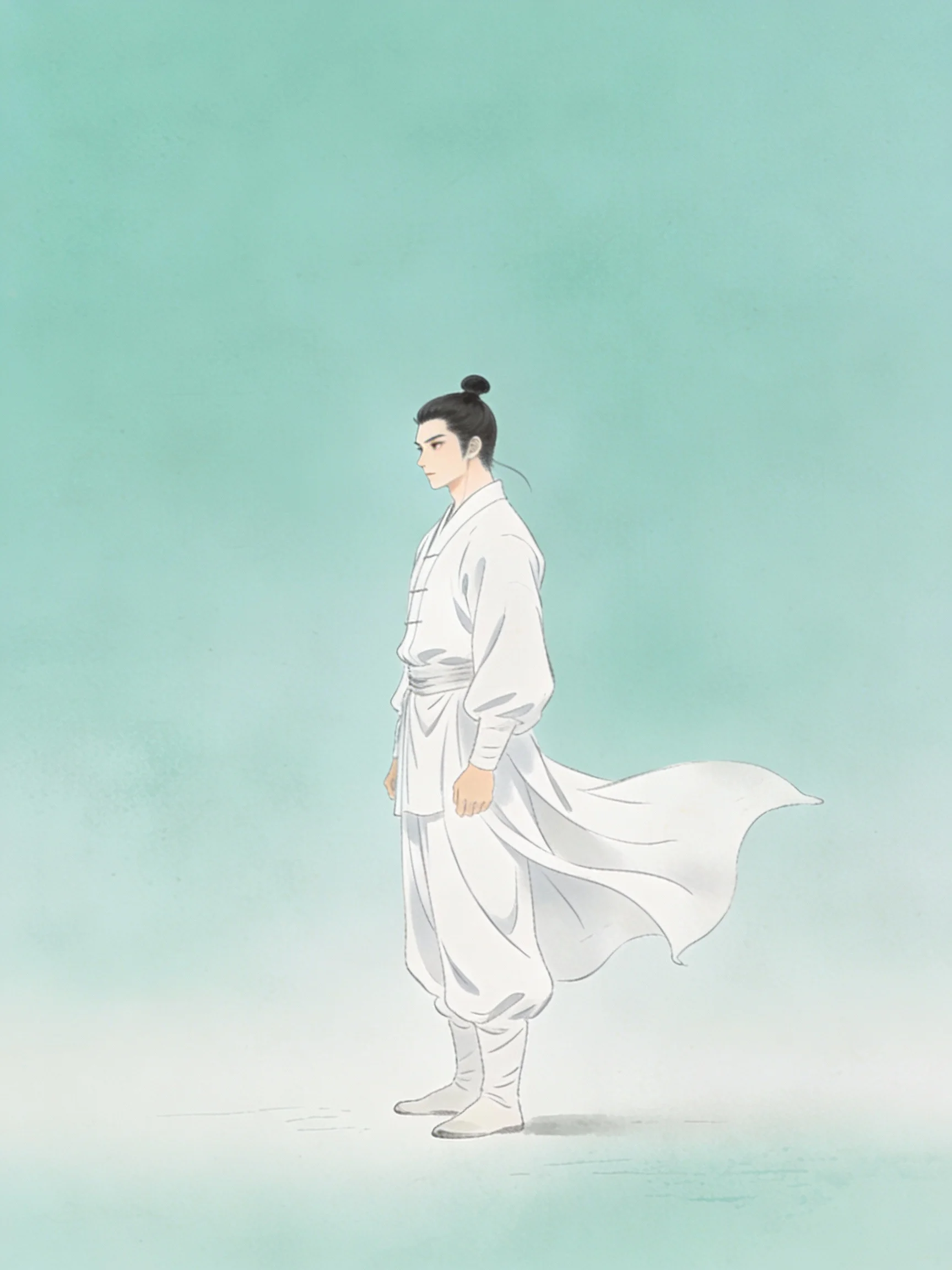
Vidéo de sortie
Performances manuelles de précision
Capturez des gestes détaillés et des mouvements de doigts pour des animations de personnages expressives.
Référence de mouvement
Référence d'image
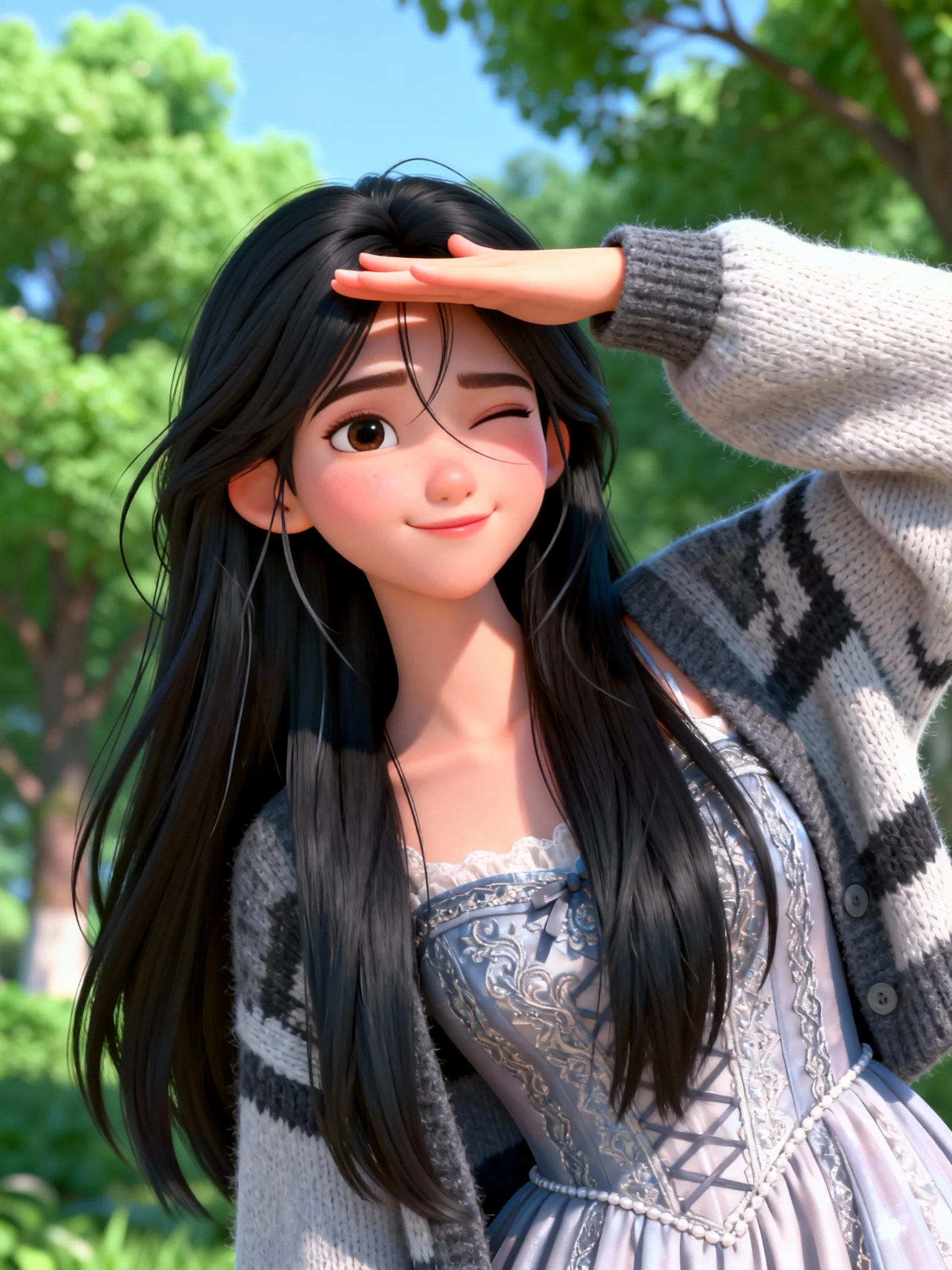
Vidéo de sortie
Action en un plan
Créez des séquences d'action unique parfaites pour le contenu des médias sociaux et les démonstrations rapides.
Référence de mouvement
Référence d'image
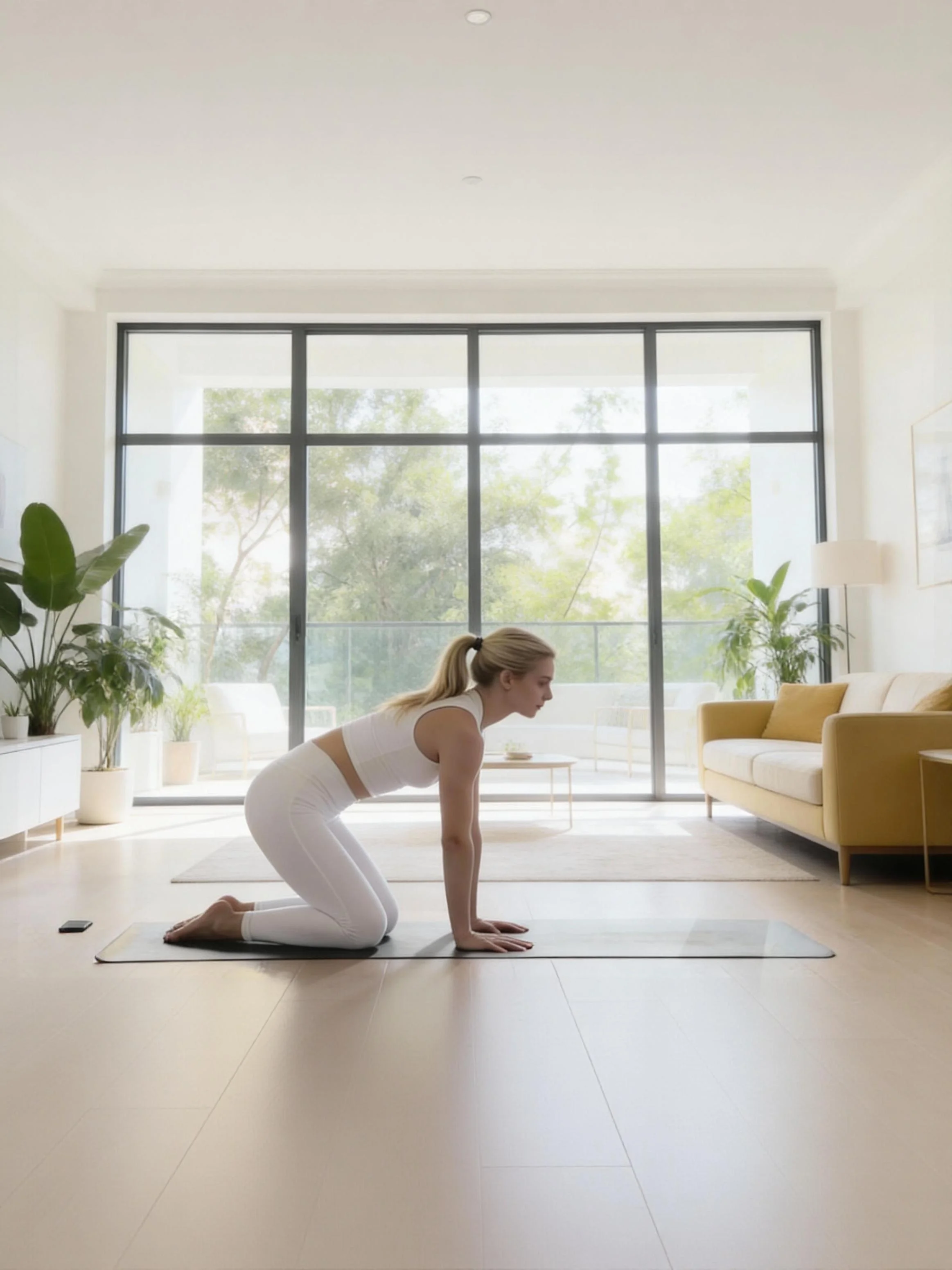
Vidéo de sortie
Détails de scène de votre commande
Contrôlez les éléments d'arrière-plan et la composition de scène tout en maintenant la précision du mouvement du personnage.
Référence de mouvement
Référence d'image
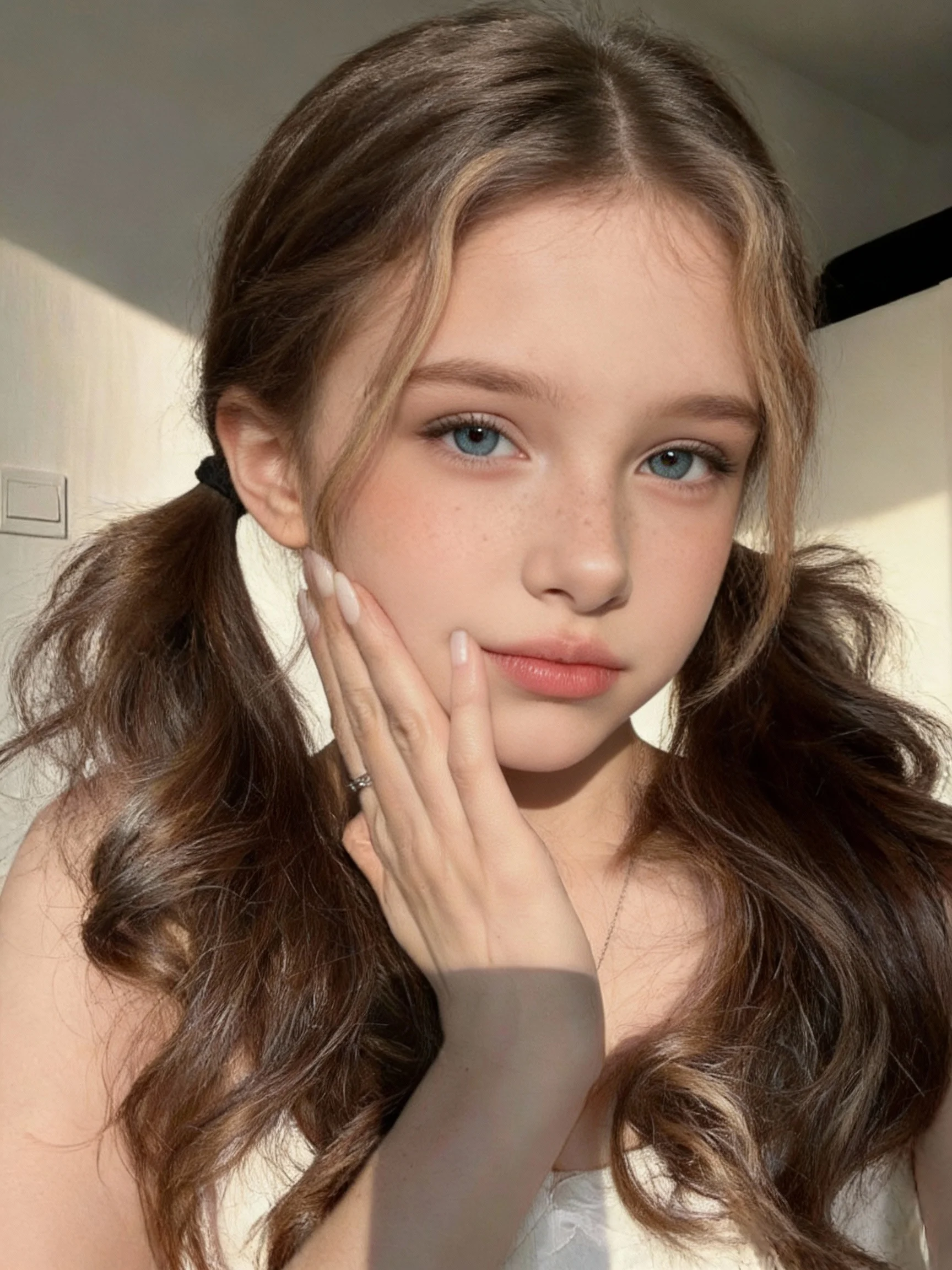
Vidéo de sortie
Comment obtenir la sortie souhaitée
Conseils pour obtenir les meilleurs résultats avec Motion Control
1
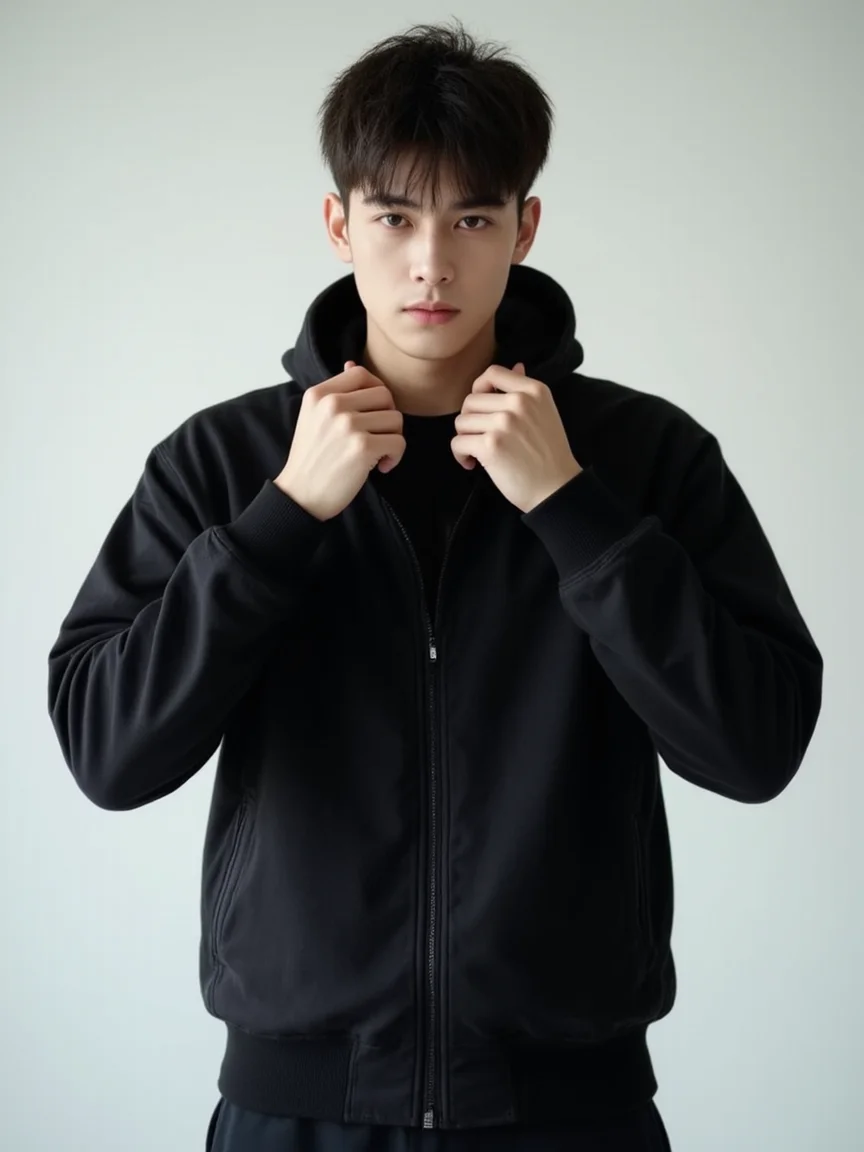
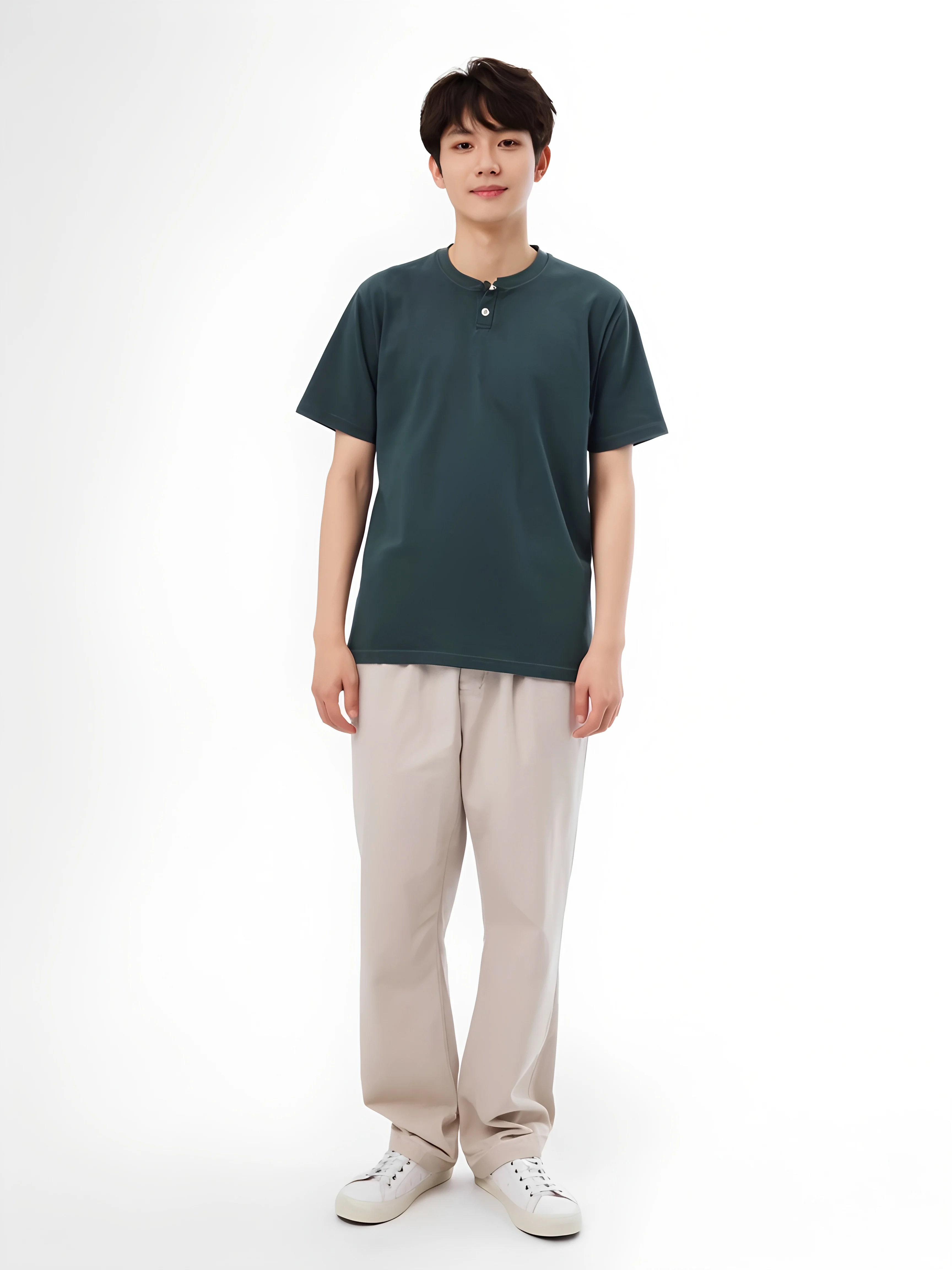
Assurez-vous que le personnage dans l'image est prêt à bouger
Images corps entier ou demi-corps recommandées pour de meilleurs résultats
2
Utilisez une vidéo claire comme référence de mouvement
Pas de bruit, mouvement corporel complet recommandé
3
Pour les grands mouvements, assurez-vous d'avoir assez d'espace dans l'image
Laissez suffisamment d'espace pour l'action
Images d'exemple
Demi-corps
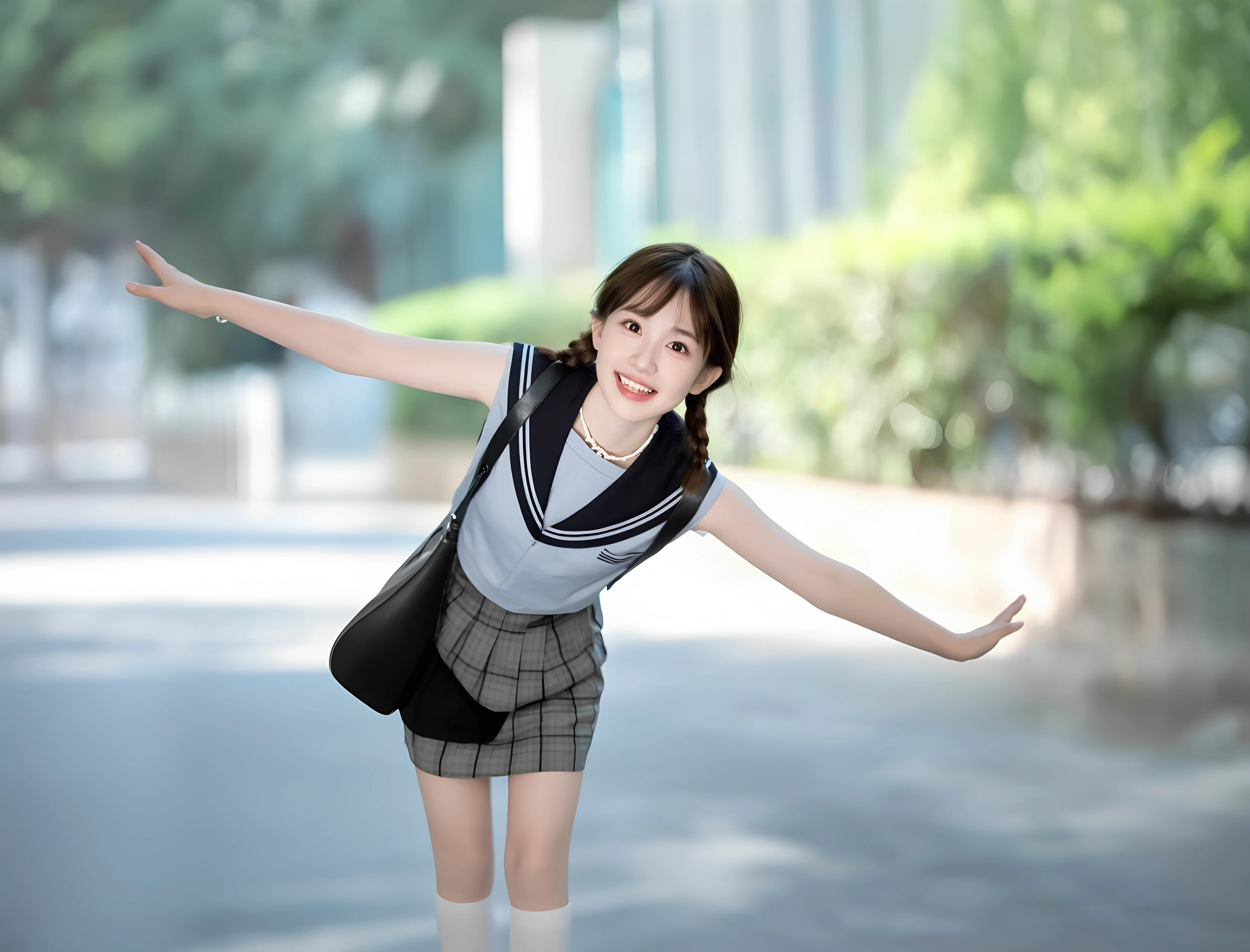
Corps entier
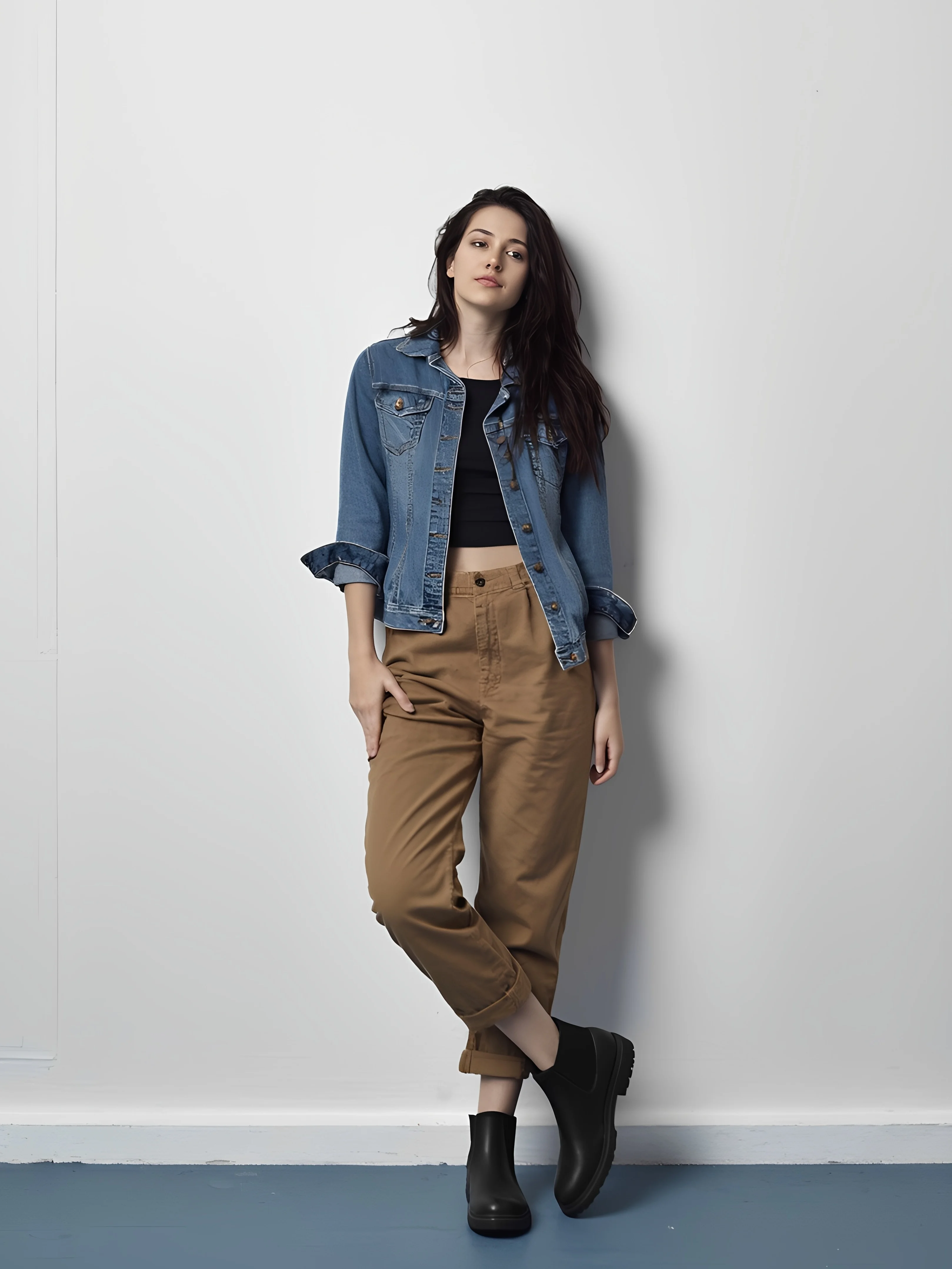
Vidéos d'exemple
Demi-corps
Corps entier
Comment utiliser
Quatre étapes simples pour créer votre vidéo à contrôle de mouvement
1
Télécharger la vidéo de mouvement
Ajoutez une vidéo de référence montrant le mouvement que vous souhaitez reproduire. Choisissez dans la bibliothèque ou téléchargez la vôtre.
2
Ajouter l'image du personnage
Téléchargez votre image de personnage. Assurez-vous que les proportions correspondent à la vidéo pour des résultats optimaux.
3
Configurer les paramètres
Sélectionnez l'orientation du personnage et ajustez les paramètres pour affiner la sortie.
4
Générer la vidéo
Entrez des prompts pour contrôler l'arrière-plan et générez votre vidéo à contrôle de mouvement.
Meilleures pratiques
Conseils pour obtenir les meilleurs résultats
Préparation du personnage
- Utilisez des images corps entier ou demi-corps pour de meilleurs résultats
- Assurez-vous que le personnage est dans une pose prête à bouger
Qualité vidéo
- Utilisez des vidéos claires sans bruit ni flou
- Évitez les références de mouvement tremblantes ou rapides
Espace et composition
- Laissez suffisamment d'espace dans l'image pour l'action
- Faites correspondre les proportions du personnage à la vidéo de référence
Orientation du personnage
Comprendre les options d'orientation pour de meilleurs résultats
Par défaut: Orientation du personnage correspond à la vidéo
Le système génère par défaut l'orientation de l'image pour la cohérence avec la vidéo de référence.
Option: Orientation du personnage correspond à l'image
Sélectionnez 'Aligner' pour que l'orientation du personnage suive la référence d'image. Prend en charge le mouvement de caméra.
Notes importantes
- 1Si 'Modèle de personnage unique' et mouvement corps entier avec le même personnage, seule une petite partie du cadre sera utilisée.
- 2Évitez les mains et le mouvement de caméra dans la référence de mouvement.
- 3Évitez les mouvements fortement flous, tremblants, soudains et rapides.
Paramètres techniques
3-5s
Plage de mouvement (recommandé)
1-30s
Durée de vidéo de sortie
Match
La durée correspond à la référence
Spécifications techniques
Paramètres et limites du contrôle de mouvement
Référence d'image
FormatsJPG, JPEG, PNG
Taille max10MB
Résolution min> 300px
Ratio d'aspect2:5 à 5:2
Cadrage corporelDemi-corps / Corps entier (doit correspondre au mouvement)
Support de personnagePersonnage principal unique
Référence de mouvement
FormatsMP4, MOV
Taille max100MB
Durée3-30 secondes
Orientation du personnage
Mode imageCorrespondre à l'orientation image (max 10s vidéo)
Mode vidéoCorrespondre à l'orientation vidéo (max 30s vidéo)
Spécifications de sortie
Durée vidéo1-10s (mode image) / 1-30s (mode vidéo)
Résolution720p / 1080p
Ratio d'aspect16:9, 9:16, 1:1
Questions fréquentes
Questions fréquemment posées
Questions courantes sur Kling Motion Control
Commencer à créer aujourd'hui — Aucune carte de crédit requise
Commencez Kling Motion aujourd'hui
10,000+ creators worldwide
No credit card required
Cancel anytime